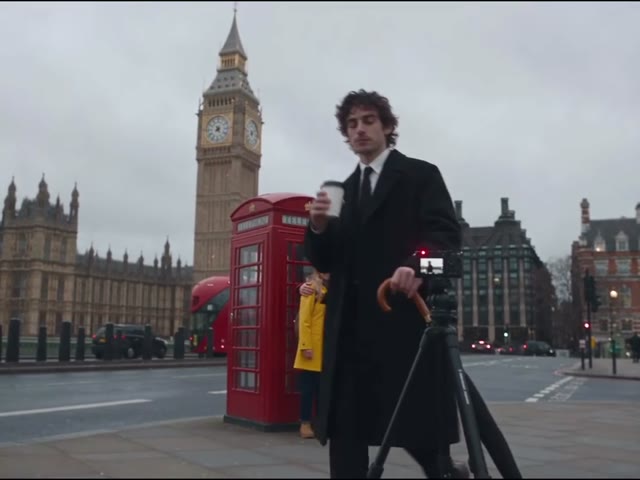
How to make a GTA Goodbye AI video
Start with a portrait, choose an edit and end with a vertical MP4. The walkthrough covers the template workflow and the prompts you can use in a reference-to-video model.
Make the video from a portrait
Pick a scene
Open the GTA Goodbye maker. Choose Farewell or Loading screen, then pick a scene to watch its reference video.
Upload the right photos
Use one sharp, front-facing portrait of an adult. Couple Loading Screen uses two separate portraits. The first goes on the left and the second on the right.
Choose the quality and generate
Pick 480p or 720p. Confirm that you have permission to use the portraits and generate the 15-second farewell or 8-second reveal.
Download the result
When the job finishes, open your result in the player or My Videos. Choose Download MP4 to save the vertical clip.
Choose a photo that survives the cut
- For a close-up choose a softly lit portrait with both eyes visible. A small face from a group photo leaves the model guessing at features.
- For Time Flies use a recent photo. The prompt asks for a change in age while keeping the eyes and facial proportions consistent.
- For a duo use two similar crops with similar lighting. Keep each adult alone in their own photo.
Copy a prompt for each scene
Use reference-to-video mode, set 9:16, and turn on generated audio. Pick 15 seconds for farewells or 8 seconds for loading-screen reveals. Attach each portrait as an identity reference in the order named in the prompt.
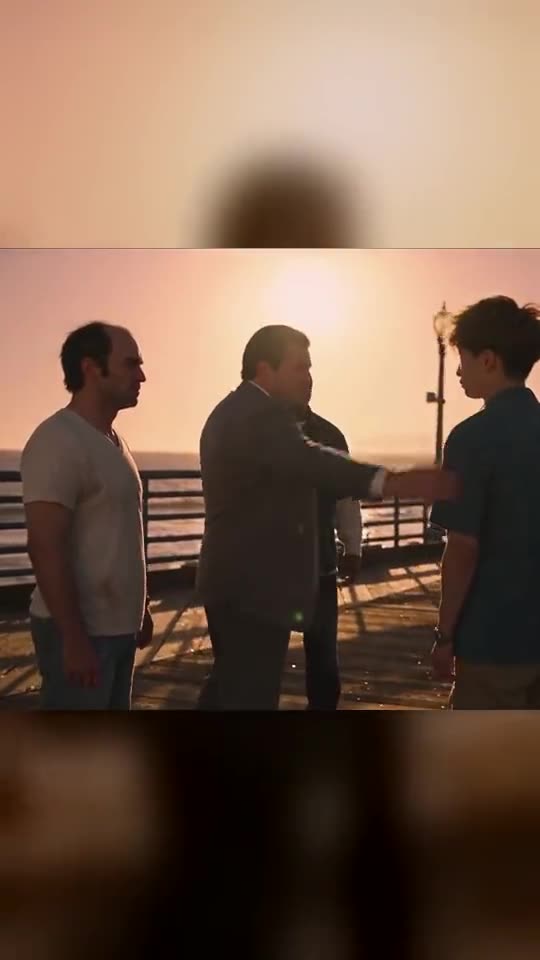
Goodbye on the Pier
Create a vertical 9:16 video, 15 seconds long, in an original coastal city.

Cast the adult from reference image 1 as the lead. Use the photo for identity and wardrobe. Preserve facial structure, skin tone, hairstyle and clothing throughout.

0–4s · Open on a sunset pier. The adult lead approaches three original adult friends beside the railing. Hold a wide four-person composition as one friend steps up to greet the lead.

4–7s · Cut to a medium side view by the pier parking area. The lead and one friend share one brief handshake, then release. A parked, unbranded coupe sits behind them.

7–10s · Cut tight on the lead's face. Let their expression settle from a fleeting smile to a quiet goodbye.

10–13.5s · Cut inside the parked coupe. The lead settles into the driver's seat and brings a hand up to the wheel.

13.5–15s · Cut to the friends from behind, facing the road. The same coupe leaves the frame in the distance.

Audio: Carry gentle pier wind and lapping water into the handshake. Let seat fabric and a quiet engine idle enter only in the cabin. Finish with a soft original ambient tone. Generate new sound. No dialogue, lyrics or recognizable melody.

Keep faces and limbs consistent across cuts. No visible text, watermarks, logos, recognizable franchise characters or replicated game assets.Time Flies
Create a vertical 9:16 video, 15 seconds long, in an original coastal city.

Cast the adult from reference image 1 as the lead. Use the photo for identity and wardrobe. Preserve facial structure, skin tone, hairstyle and clothing throughout.

0–3s · In clear daylight on a pier, show a younger adult version of the lead approaching their three adult friends. Alternate the rear wide shot with each friend's reaction.

3–6s · Show the lead trading a single fist bump with the nearest friend in close-up, then cut back to the group's faces. Establish the exact angle for the repeated gesture.

6–9s · Match cut to sunset years later on the same pier. The lead is visibly older, with the same face shape, eyes and hairline. Repeat the fist bump in the same position and framing.

9–11.5s · Give the older lead a close-up. One friend places a hand on their shoulder while another waits in the background.

11.5–15s · Cut wide for a brief hug and close again on the lead's reaction. Hold the final embrace against the sunset.

Audio: Use a light pier ambience across both visits. Match a quiet sleeve sound on the two fist bumps and carry an original sustained chord through the time cut. Generate new sound. No dialogue, lyrics or recognizable melody.

Keep faces and limbs consistent across cuts. No visible text, watermarks, logos, recognizable franchise characters or replicated game assets.The Last Drive
Create a vertical 9:16 video, 15 seconds long, in an original coastal city.

Cast the adult from reference image 1 as the lead. Use the photo for identity and wardrobe. Preserve facial structure, skin tone, hairstyle and clothing throughout.

0–3.5s · From inside a vintage, unbranded convertible, frame the lead's eyes in the rearview mirror. They adjust the mirror once and look forward.

3.5–5s · Cut outward to a coast road and briefly follow a friend riding ahead. Keep the direction of travel consistent with the cabin.

5–8.5s · Track beside the convertible to see the lead's driving profile. A friend draws alongside in a second car and the lead glances over for a moment at cruising speed.

8.5–11s · Return to a windshield view as the road opens into golden light. Keep the same vehicle and wardrobe as in the mirror shot.

11–14s · Cut to a steady follow shot behind the second car. The two cars continue down the empty road.

14–15s · Cut back to the lead for a small, unguarded grin.

Audio: Build a quiet road and tire sound bed. Keep a steady engine note between interior and exterior shots, then lift in a brief, original instrumental cue under the final smile. Generate new sound. No dialogue, lyrics or recognizable melody.

Keep faces and limbs consistent across cuts. No visible text, watermarks, logos, recognizable franchise characters or replicated game assets.Solo Loading-Screen Portrait
Create a vertical 9:16 video, 8 seconds long, in an original coastal city.

Cast the adult from reference image 1 as the lead. Use the photo for identity and wardrobe. Preserve facial structure, skin tone, hairstyle and clothing throughout.

0–2.5s · Start on a casual indoor mirror portrait of the uploaded adult. Keep their upper body, expression and phone visible. Hold the composition nearly still.

2.5–4s · Reveal the painted version from the bottom. The phone and clothing line up with the photo while the lower background becomes a waterfront boulevard.

4–5.5s · The same upward wipe reaches the face and then the skyline, preserving the lead's pose, gaze and facial proportions as the photo becomes a painted portrait.

5.5–8s · Hold the completed solo portrait against a pink-violet dusk skyline, with a small drift in only the distant background.

Audio: Quiet indoor tone until the wipe, a soft original transition sweep, then low city air and a short synth chord. Generate new sound. No dialogue, lyrics or recognizable melody.

Keep faces and limbs consistent across cuts. No visible text, watermarks, logos, recognizable franchise characters or replicated game assets.Red Car Loading Screen
Create a vertical 9:16 video, 8 seconds long, in an original coastal city.

Cast the adult from reference image 1 as the lead. Use the photo for identity and wardrobe. Preserve facial structure, skin tone, hairstyle and clothing throughout.

0–2.5s · Open on an angled selfie of the lead seated inside a car, one hand near their temple. Keep the visible face, outfit and hand position stable.

2.5–4s · As the bottom edge switches to illustration, show the red door line of an original coupe first. Let the painted sleeve and raised hand emerge in the same silhouette as the photo.

4–5.5s · Complete the wipe across the lead's face and the cabin roof. The former dark interior gives way to a bright coastal street with palms and glowing art-deco shapes.

5.5–8s · Hold the lead and the red coupe in a finished three-quarter composition. Keep the face crisp and the vehicle clearly readable.

Audio: Start with soft cabin ambience. During the wipe add a subtle airy sweep that tracks the rising edge. End with distant street ambience. Generate new sound. No dialogue, lyrics or recognizable melody.

Keep faces and limbs consistent across cuts. No visible text, watermarks, logos, recognizable franchise characters or replicated game assets.Couple Loading Screen
Create a vertical 9:16 video, 8 seconds long, in an original coastal city.

Cast the adult from reference image 1 on the left and the adult from reference image 2 on the right. Preserve their distinct faces, hair, clothes and skin tones through the reveal.

0–2.5s · Place the two adults side by side in a mirror portrait, reference image 1 on screen-left and reference image 2 on screen-right. The left adult holds a phone in front of their torso. Both faces are visible.

2.5–4s · The rising matte first reveals their two painted outfits and the street below. Keep both silhouettes aligned with the live-action shoulders and preserve the gap between them.

4–5.5s · Carry the wipe evenly over both faces and the room above them, revealing a waterfront skyline. Each person keeps their own features, clothes and position.

5.5–8s · Hold the finished two-person composition. Frame both faces at a similar size against the pink harbor sky.

Audio: Low room tone at the start, a single soft paper sweep as both portraits change together, then a quiet original ambient chord under the final frame. Generate new sound. No dialogue, lyrics or recognizable melody.

Keep faces and limbs consistent across cuts. No visible text, watermarks, logos, recognizable franchise characters or replicated game assets.Make a still loading screen
Use a photo-editing model to produce a vertical 9:16 illustration from your portraits. Export it as a PNG for a still card. To make the eight-second reveal in an editor, align your source photo and illustration, hold the photo for 2.5 seconds, wipe upward for 3 seconds and hold the illustration for the last 2.5 seconds.
Solo portrait · still image
Edit the uploaded adult portrait into an original vertical 9:16 painted loading-screen card. Preserve the face, hair, clothing, expression, phone placement and pose. Keep the subject at the same scale and position as the source photo so the two frames align. Replace the room with a fictional waterfront at violet dusk. Use graphic shadows and warm highlights. No lettering, logos or game UI.Red car · still image
Create a vertical 9:16 painted card from the uploaded adult portrait. Preserve the face, clothing and hand position. Place the subject beside the red door of an original unbranded coupe on a coastal boulevard with palms and bright art-deco lighting. Keep the face and shoulders aligned with the source portrait, with the door visible in the lower third. No lettering, logos or game UI.Couple · still image
Create an original vertical 9:16 painted waterfront card using two separate adult portraits. The adult from image 1 is on the left and the adult from image 2 is on the right. Preserve each person's features, hair and outfit. Keep their heads similarly sized and both faces clear against a pink harbor sky with architectural silhouettes. No lettering, logos or game UI.Fix an identity or timing problem
| Issue | What to change |
|---|---|
| The face drifts on a cut | Use a larger face crop. Repeat the same wardrobe and camera height on both sides of the edit. |
| The hand clasp tangles | Specify one brief clasp with one friend. Cut to the reaction as soon as the hands separate. |
| The poster starts too early | Put the live-action hold and the wipe in separate time ranges. Keep the illustrated hold for the last 2.5 seconds. |
| The duo swaps sides | Attach each portrait separately and name the two screen positions in the opening shot and again after the wipe. |
See the GTA Goodbye shot breakdown for the sequence behind each scene.
Make the GTA Goodbye video with 1–2 photos
8 / 15-second 9:16 video with its own sound, from 100 credits. No prompt needed.
Open the GTA Goodbye generatorFAQ
Can I use a single group photo for the paired poster?
Crop each consenting adult into a separate photo so the template can assign them to the left and right positions.
Can I run the prompts in a different video tool?
Yes. Choose a model with image references. Match the duration to the scene and use separate visual and audio instructions.
Where do I get the completed MP4?
Use Download MP4 in the result player or find the finished clip in My Videos.