How to Make a Marigold Bridge AI Video
Choose Person or Pet, upload one photo and turn it into a 10-second Día de Muertos-inspired scene. Here is the visual recipe behind the effect and a practical guide to making it yourself.
What is the marigold bridge trend?
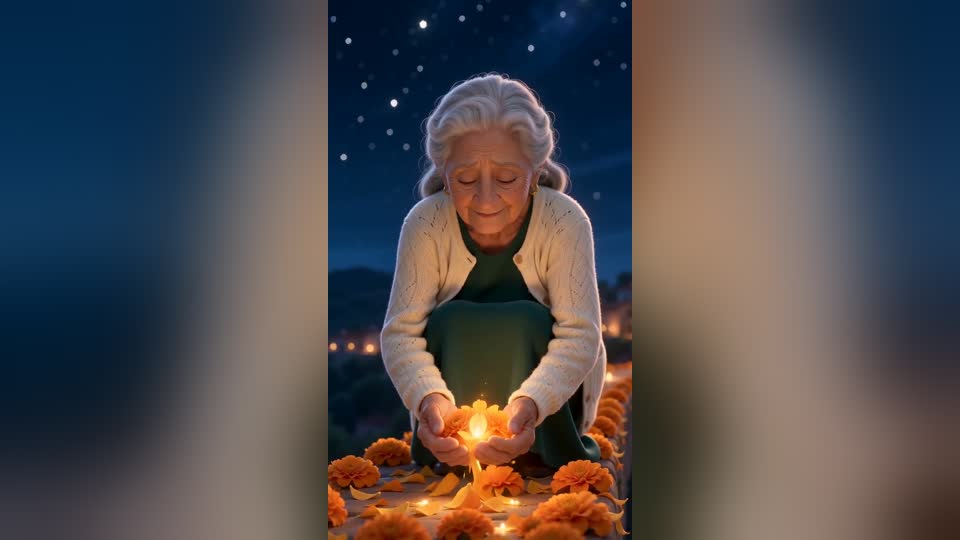
Memorial posts with the line “Es su primer Día de Muertos, no lo dejen cruzar solo” circulated in Mexico in 2025. A 3D animated crossing appeared in October 2026 with the caption “No lo dejen solito, es su primera vez cruzando el puente de cempasúchil.” In many Mexican Día de Muertos traditions, marigold paths and offerings welcome loved ones; the glowing bridge is an artistic interpretation.
Make it here from one photo
Choose a scene
Open the Marigold Bridge maker and select Person or Pet.
Upload one photo
Use a sharp, well-lit image with one clear face. A waist-up or full-body photo helps preserve clothing or pet markings; crop a group photo first. Old prints can work if you avoid glare.
Generate and download
Seedance 2.0 Fast at 720p costs 70 credits for a 10-second vertical video. Preview the result before sharing.
Write the image description
Start with the uploaded photo as the identity reference. Describe a warm, original 3D animated version of the same person, keeping face shape, age, skin tone, hair, glasses and distinctive clothing. For a pet, keep the species, muzzle, fur colors and markings. Place one subject on a wide bridge carpeted with glowing orange cempasúchil petals under a deep blue night sky; put distant warm lights beyond the bridge. Use a full-body three-quarter view and soft light from the petals. Ask for no extra foreground characters, readable text or logos.
A head-only photo may leave the model to invent trousers, shoes or a pet's body. A clearer source photo usually matters more than a longer prompt.
Write the 10-second motion
Keep one continuous camera move and a single gentle action. In the Person scene, low camera follows the first careful steps, rises as the person crouches, then stays close while they gather petals and smile. In the Pet scene, the animal walks forward, pauses to sniff the flowers and looks toward the camera. Keep the same face or markings and the same bridge throughout. Add quiet wind, footsteps or pawsteps, petal rustle and an original soft instrumental texture; avoid dialogue and recognizable songs.
| Time | Person | Pet |
|---|---|---|
| 0–3 s | Slow steps light up the petals; camera starts low | Slow pawsteps onto the glowing bridge |
| 3–5 s | Looks down and crouches as the camera rises | Pauses and sniffs the flowers |
| 5–10 s | Gathers petals, lifts them and smiles | Turns toward the camera among drifting petals |
These times describe the desired rhythm; a text-to-video model may not follow exact frame boundaries.
If the result looks wrong
- Face changes: use one sharper photo and explicitly preserve age, hairstyle, glasses and clothes.
- Extra hands or characters: request one subject near the camera, a simple continuous shot and no morphing.
- Bridge disappears: repeat the orange petals, deep blue night and distant warm lights in both image and motion descriptions.
- Pet moves like a person: choose the Pet scene and describe natural four-legged walking, sniffing and looking back.
常見問題
Can I make one for a pet?
Yes. Choose the Pet scene in the same maker and upload one clear photo of your dog or cat.
Do I need a reference video?
No. The maker uses your photo and its built-in text prompt. The example video helps you preview the style.
Why might the result differ from the example?
Each video is newly generated from your photo. Small details, movement and likeness can vary.